
Convert HEIC to JPG on Windows 11 Without Installing Apps
If an iPhone photo will not open on your PC, the quickest fix is to convert HEIC to JPG on Windows 11 in the browser you already have. This guide shows how to convert HEIC to JPG without installing an app, how to convert a whole batch into one ZIP, and what Microsoft’s own extensions do if you would rather open HEIC files directly.
Why HEIC photos may not open on Windows 11
HEIC is a HEIF image whose picture data is compressed with HEVC. To show it, Windows needs two Microsoft Store packages, and whether a PC already has them depends on the device:
- HEIF Image Extension — listed as Free. Its Store page says the HEVC Video Extensions package must also be installed to view images in
.heic,.hif, or.heiffiles. - HEVC Video Extensions — listed at US$0.99 in the US Microsoft Store.
Microsoft’s support article for the Photos app says you may see “You need an extension to use this file” and that you need both extensions, “even if you only plan on using photos and not videos”. (Prices and wording checked on 2 October 2026 on the HEIF Image Extension page, the HEVC Video Extensions page, and Microsoft Support; the support article is labeled for Windows 10. Store prices can differ by country.)
Three ways to get a JPG on Windows 11
| Method | Install anything? | Cost | Where the photo is processed |
|---|---|---|---|
| Convert in your browser with heicly | No | Free | In your browser, on your PC |
| Install Microsoft’s HEIF and HEVC extensions | Yes, two Store packages | HEIF free, HEVC US$0.99 (US Store) | Lets Windows apps open HEIC; it does not create JPG copies by itself |
| Let the phone convert when transferring | No | Free | On the phone; Microsoft notes you may need to change camera and photo settings for this to work |
The browser method is the only one of the three that turns HEIC files you already have on your PC into JPG copies without installing anything.
How to convert HEIC to JPG with heicly
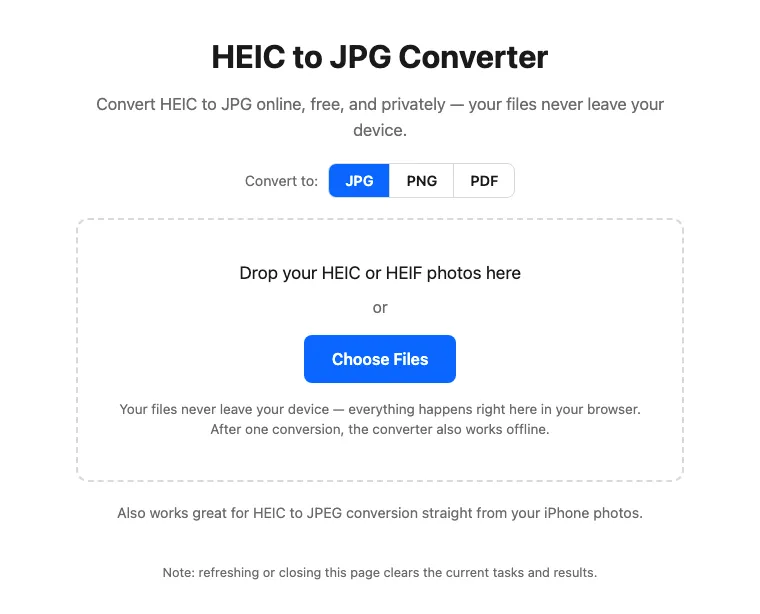
You can use the converter right here, without leaving this page. It is the same converter as the heicly home page.
Drop your HEIC or HEIF photos here
or
Your files never leave your device — everything happens right here in your browser. After one conversion, the converter also works offline.
Also works great for HEIC to JPEG conversion straight from your iPhone photos.
Note: refreshing or closing this page clears the current tasks and results.
-
Open the converter in Edge or Chrome. Desktop Chrome and Edge have passed heicly’s sample conversion tests. No sign-up is needed.
-
Drag your HEIC files into the box, or click “Choose Files”. Select one photo or several.
-
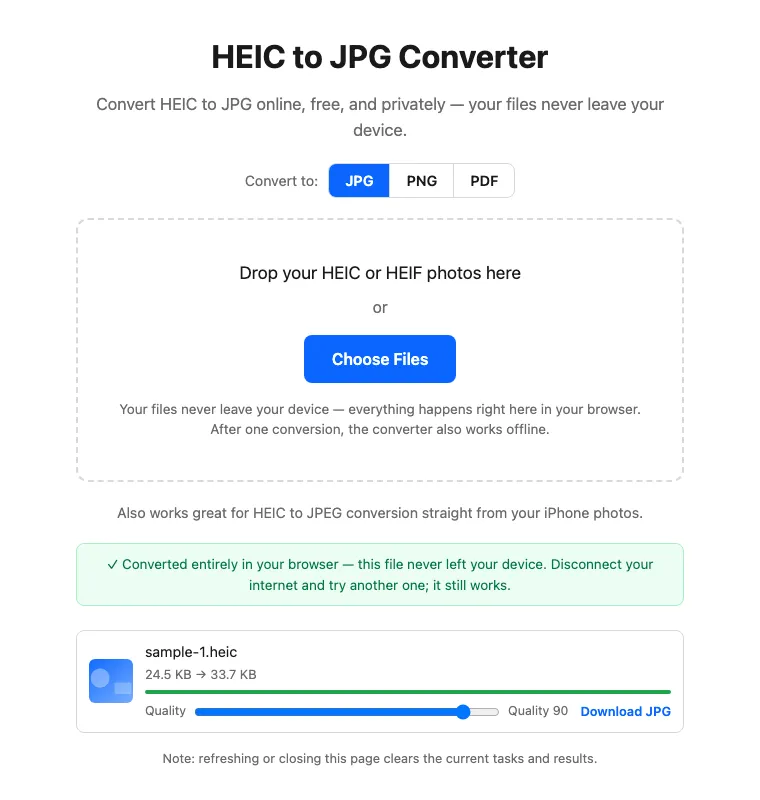
Download the JPG. For a single photo, the quality slider starts at 90 out of 100; move it lower for a smaller file, then click “Download JPG”.
-
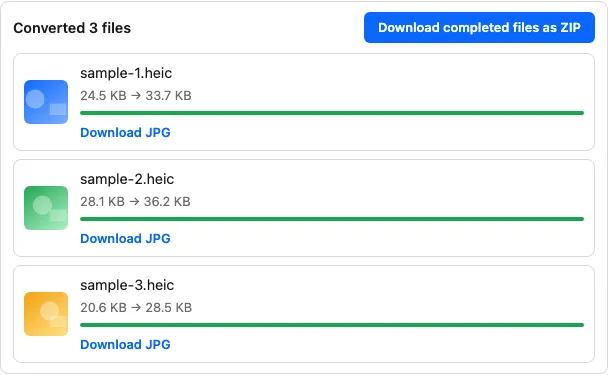
For a batch, download a ZIP. Each photo gets its own progress bar. Download finished photos one by one, or click “Download completed files as ZIP”.
Converting many photos at once
There is no daily quota or fixed batch count limit, but your PC’s memory still sets a practical limit:
- Up to three conversions run at a time, and files larger than 20 MiB are processed one at a time.
- The ZIP is assembled in memory. For a large collection, convert smaller groups and save each ZIP before starting the next one.
- Refreshing or closing the page clears the current tasks and results.
Are my photos sent anywhere?
No. heicly decodes each photo and creates the JPG inside your browser; the photos are not sent to a server. The site still loads its pages and analytics, so it is not “no network at all”. You can check this yourself:
- After one conversion, disconnect from the internet and convert another photo. It still works.
- Open your browser’s developer tools, go to the Network panel, and convert a photo. No request carries your photo.
Read the privacy notice for details on analytics and browser storage.
Before you delete the originals
- JPG uses lossy compression, so keep the HEIC original if you need an archive copy.
- Images above 16,777,216 pixels are resized proportionally, and the page tells you when that happens.
- Check the orientation and size of the JPG before sharing it.
Need a different format? heicly can also convert HEIC to PNG, HEIC to PDF, and HEIF to JPG in the same way.